Release notes
Voice support for shortcuts
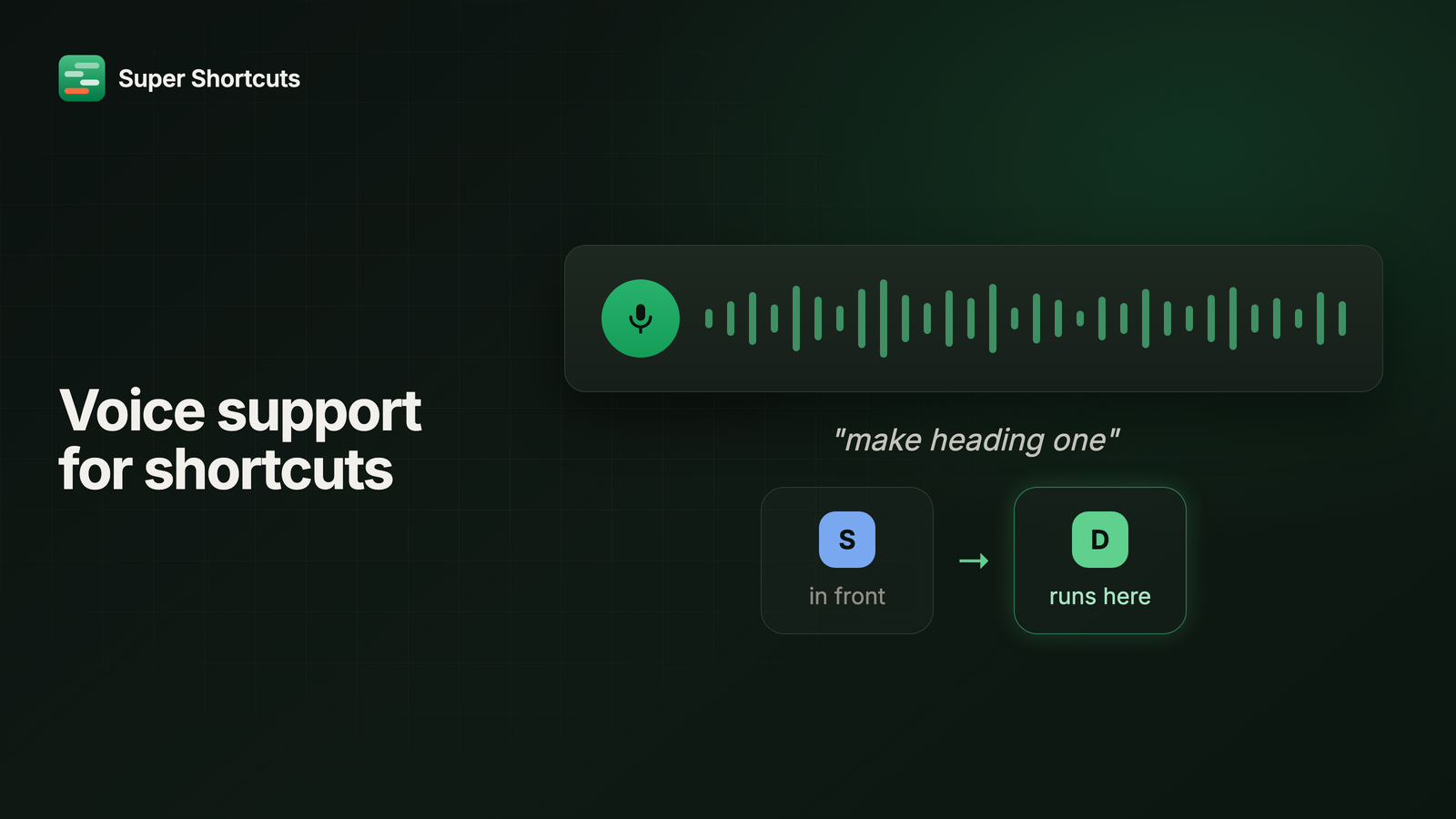
Some things are faster to say than to press. “Make heading one.” “Open Github Issues.” “Open the PR queue.” Nothing to remember, no chord, no hand on the keyboard at all.
Hold the push-to-talk key, say the phrase you gave a workflow, and it runs. The transcription happens on your Mac, offline, against a model you download once. Your voice doesn’t go anywhere.
The hard part isn’t hearing you
It’s knowing where to put the keystrokes.
Say “make heading one” while you’re looking at Slack. The workflow you built for Google Docs needs Docs in front of it before it types anything, or you’ve just fired a formatting shortcut into a chat box.
So a voice command for an app-scoped workflow brings that app forward and runs it there. No confirmation step, no “did you mean”. You say it, the right app comes up, the thing happens.
If the match is fuzzy or there’s more than one candidate, you still get the picker. Auto-switching only kicks in when there’s exactly one confident answer, because making the wrong app leap to the front is worse than asking.
A clear no beats a wrong run
If the app isn’t open, or won’t come forward, nothing runs at all. A badge shows up where you triggered it: “Chrome isn’t open. Open Chrome to run this shortcut.”
It will never launch an app behind your back to make a command work. And the badge lands on the display you spoke to, not on whatever screen macOS considers the main one.
One limit worth saying out loud: this covers workflows scoped to an app. If you scoped one to a website or a window title only, it’ll still ask you to open the page even when you’re already sitting on it. That one’s next.
Chords stay where you are
Keyboard shortcuts deliberately do none of this.
A chord is about where you already are, which is the entire point of scoping it.
⌃⌥⌘+M meaning one thing in a call and another in your inbox only works if
pressing it never drags you somewhere else. Voice is a different conversation:
you’re talking to the Mac, not to the window in front of you.
So voice travels. Chords stay put.
Added Support for Apple Shortcuts
If you’ve already built things in Apple Shortcuts, you can call them now. VPN toggles, HomeKit scenes, file operations, an API call you set up once and forgot about.
Pick from a live list of what’s actually installed on your Mac, pass it text including whatever’s on your clipboard, and your workflow waits for it to finish before moving on. If it fails you get the real error back from Apple Shortcuts, named, instead of a shrug. Cancel the workflow and the shortcut cancels with it.
The step also remembers the shortcut itself rather than its name, so renaming it in Apple Shortcuts later doesn’t quietly break anything.
Improved sidebar
Collapsing the sidebar used to mean losing it completely, along with any sense of where you were in your own workflows. Now it shrinks to a narrow rail of icons instead: the apps you’ve scoped things to, and a letter for each of your saved recipes. Hover one for its name, double-click to open it.
You get the canvas space back without giving up navigation, which was the whole reason you collapsed it in the first place.
⌘B toggles. The button stays put instead of sliding across the window as the sidebar moves, so you can collapse and expand without hunting for it. And if you want a width somewhere in between, drag the divider and it’ll stick.