Release notes
Rebuilt Dashboard and Monterey support
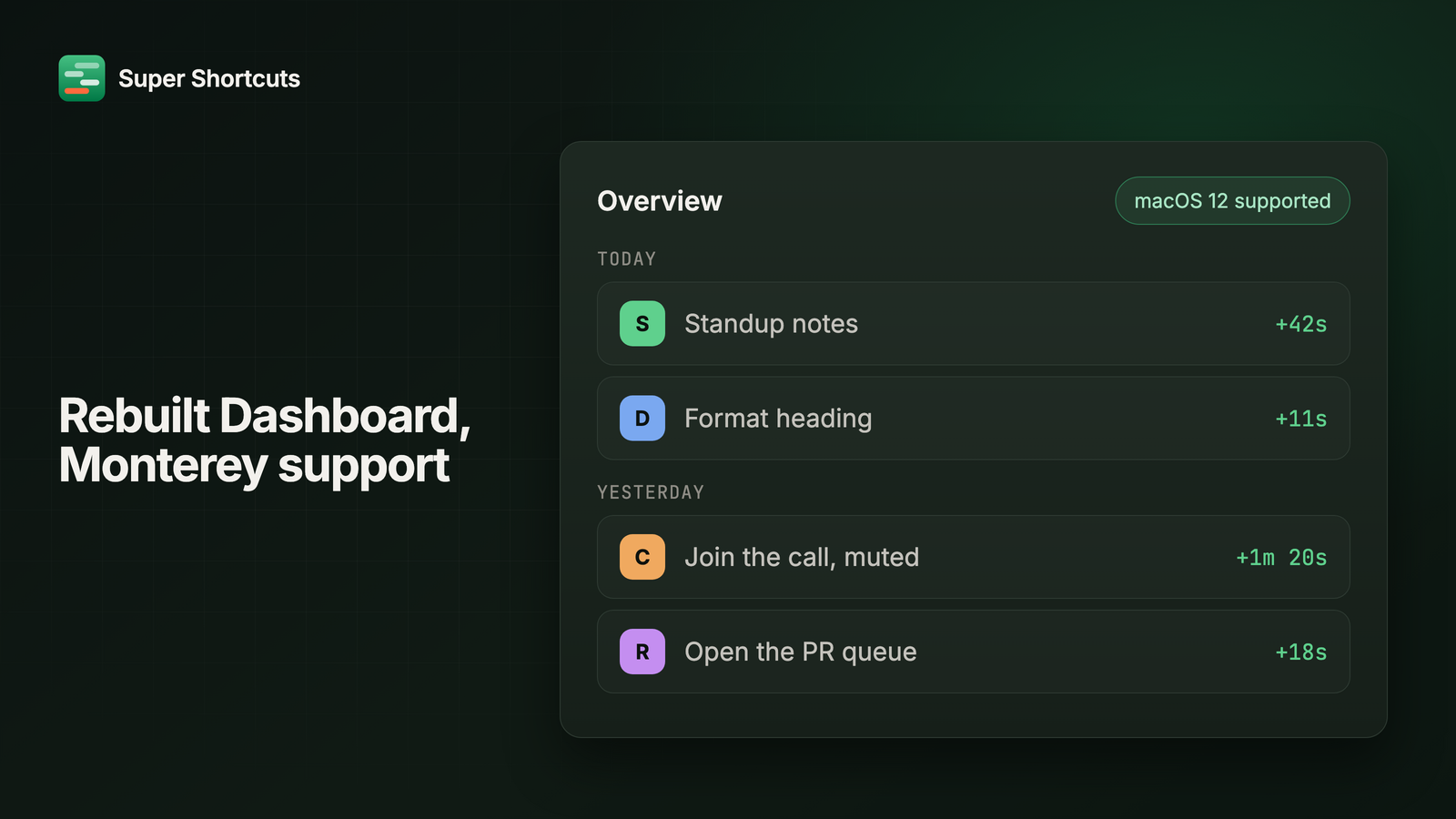
Super Shortcuts now runs back to macOS 12, Home has been rebuilt around what you actually ran, the builder gets browser-style Back and Forward, and picking a menu command no longer means typing its path by hand and hoping.
Now runs on Monterey
macOS 12 (Monterey) is now supported. The floor used to be macOS 13. Launch at login still needs 13 or later, and a couple of visual flourishes only show up on newer systems. That’s the extent of it: the handful of things that need a newer macOS quietly sit out, and everything else works exactly the same.
Overview is a live activity feed
Home’s Overview shows everything you ran, newest first, grouped by day, with infinite scroll back through your history. Hover a row to run it again or open it in the builder, and see the time each run earned back, next to a compact stats rail with your totals and milestones.
Insights gets its own tab
The celebratory charts - usage heatmap, milestones, top workflows, and the per-workflow ledgers collapsed to a tidy top 10 - moved out of Overview into their own Insights tab, for when you want to reflect rather than work. Home also gets its own sidebar, and switching pages is instant thanks to cached snapshots and an indexed history read.
Keyboard navigation everywhere
⌘[ and ⌘] walk your navigation history in the builder. Mouse back and forward buttons and two-finger trackpad swipes work too, and it is careful about it: swiping inside a horizontally scrolling strip scrolls the strip, and navigation stays put while a dialog sheet is open.
Menus are where the good stuff hides
Every app ships hundreds of commands. Most of them are buried three levels deep in a menu, and plenty have no keyboard shortcut at all, which is exactly why they’re worth automating.
Pointing a workflow at one used to mean typing its path from memory: File > Export > PDF… spelled exactly right, every character. Get it even slightly
wrong and you found out later, when the workflow ran and quietly did nothing.
Now the builder just reads the app’s real menu bar. Pick the app, walk the dropdowns, click the thing you want. It’s the same menu you’d click yourself, so there’s no path left to get wrong. It also turns out to be a good way to find commands you never knew the app had.
Cheat-sheet settings, consolidated
One settings surface, in the Home sidebar, with a true-to-size preview - what you see is exactly the size you will get, with an honest callout when your chosen size exceeds the screen. The size slider is simpler and the hold-threshold wording clearer.