Release notes
Super Shortcuts is here
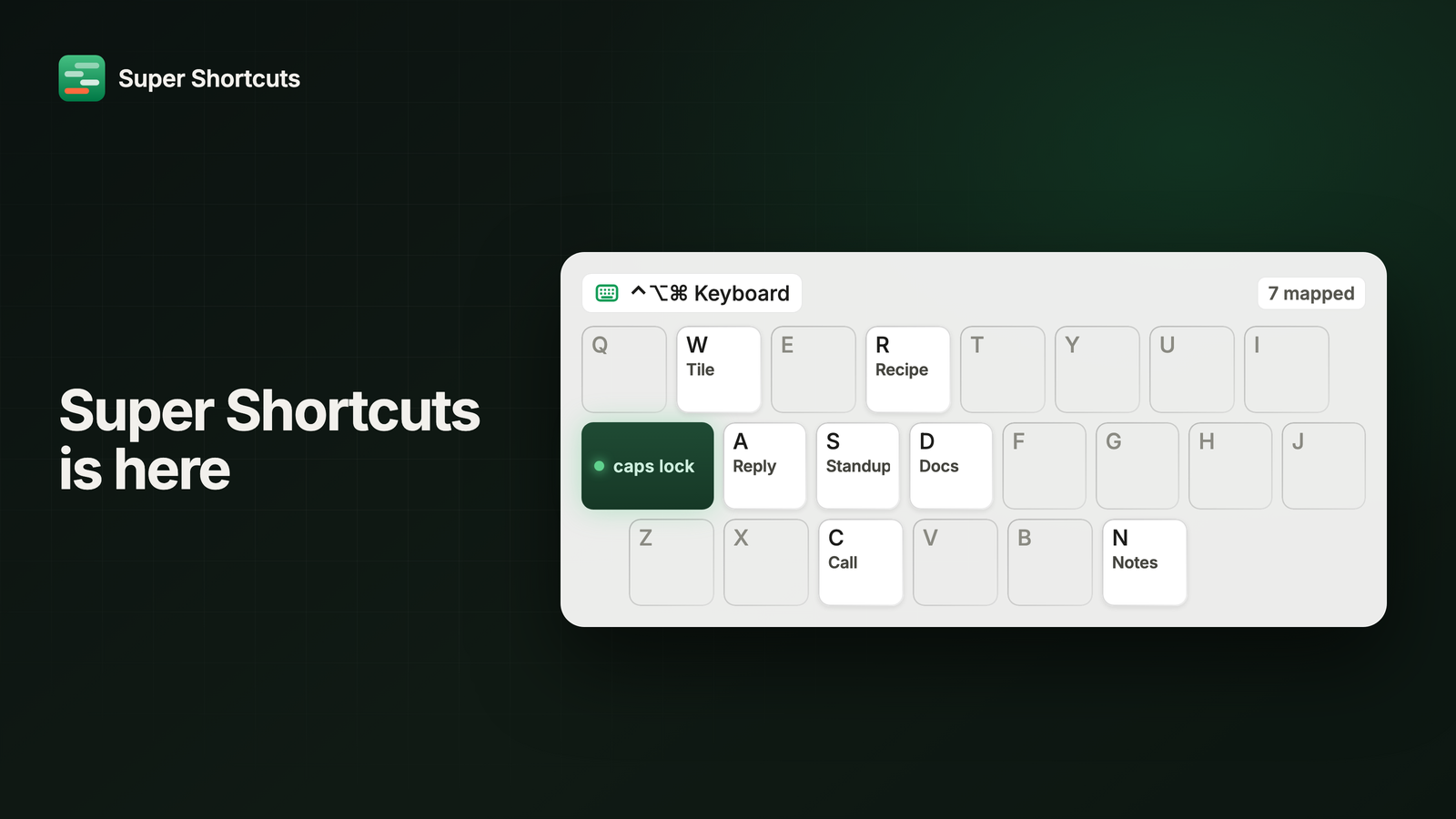
Nobody writes a script to save five seconds.
That’s the whole problem. The stuff you repeat all day is individually too small to be worth fixing. Dig through three menus to change a heading. Resize the same window. Cmd-Tab four times to land on Slack. None of it is worth automating on its own, which is exactly why none of it ever gets automated, and why it never stops. You just keep paying, a few seconds at a time, for years.
Super Shortcuts is built for those.
Caps Lock was doing nothing
Best real estate on the keyboard, worst job in the building. It’s parked right where your left pinky rests and spends its whole life waiting to shout at somebody by accident. So I took it.
Hold Caps Lock and your Mac sees the ⌃⌥⌘ chord: Control, Option and Command,
all at once. That specific chord is the secret sauce. It’s awkward enough that no
app has ever claimed it, so ⌃⌥⌘ plus almost any key is free. You get a hundred
shortcuts that collide with nothing you already use, and you fire them with one
finger instead of doing hand yoga.
Caps Lock is just the default. If you already run a remapper you like, point
Super Shortcuts at ⌃⌥⌘ directly and leave Caps Lock alone.
And one key can mean different things in different places, because Super
Shortcuts knows which app and which website you’re in. ⌃⌥⌘+M mutes me in a
call and marks a thread read in my inbox. Same keystroke, two jobs, nothing to
remember. A conflict checker tells you when two of your shortcuts are fighting
over the same chord.
You’re not going to remember them
That’s the part everyone gets wrong about custom shortcuts, including me. You set up something clever on Tuesday and by Friday it’s gone.
So hold the hyper key for a beat and every shortcut you’ve made shows up on
screen, arranged on a picture of your keyboard, right where your hands already
are. Look, press, it’s gone. You never have to memorize anything, which means
you’ll actually keep using the ones you build. And if a workflow ever gets away
from you, ⌃⌥⌘+Esc kills it on the spot.
Building one takes about a minute
You shouldn’t have to write code to automate your own computer. That’s the entire point of this thing.
Here it’s dragging steps into a row and hitting Run. Open this app, click that menu, type this, put the window over there. Watch it go, fix whatever looked wrong, done.
The steps are the ordinary things you already do by hand, and each one tells you how dependable it is, so you can see which parts will work every time and which depend on an app still being where you left it. Anything worth reusing gets saved once and dropped into other workflows instead of rebuilt.
And if a blank canvas is the last thing you need on a Tuesday, there are 37 ready-made workflows for Docs, Sheets, Gmail, Calendar, GitHub, VS Code, meetings and everyday macOS. One click and it’s yours to change.
It tells you which ones are worth it
Home keeps a running tally of the time you got back and the workflows you lean on. Mine says about two hours a week. It’s also how I find out which shortcuts I built once, felt clever about, and have not touched since.
Private by default, and I’ll be specific about it
Everything interesting stays on your Mac. Your workflows, your keystrokes, your clipboard. There’s no account to make.
Since this release: Super Shortcuts now asks you to sign in, so your plan can follow you between Macs. The account holds your email, your plan, and a record of the Macs you sign in on. Everything below still holds for the workflows themselves.
That’s an architecture decision, not a marketing line. There’s no sync service to breach, no queue somewhere holding your keystrokes, and the app behaves exactly the same with the Wi-Fi switched off. I couldn’t read your workflows if I wanted to.
Two things do leave, so here they are. Product analytics is opt-in and stays off until you turn it on. Crash reporting is on by default with a clear toggle to turn it off. Both are scrubbed of your content and of anything personal. No ad pixels, nothing to sell.
If you use a Mac for work, I’d love for you to try it.