Release notes
Read every key
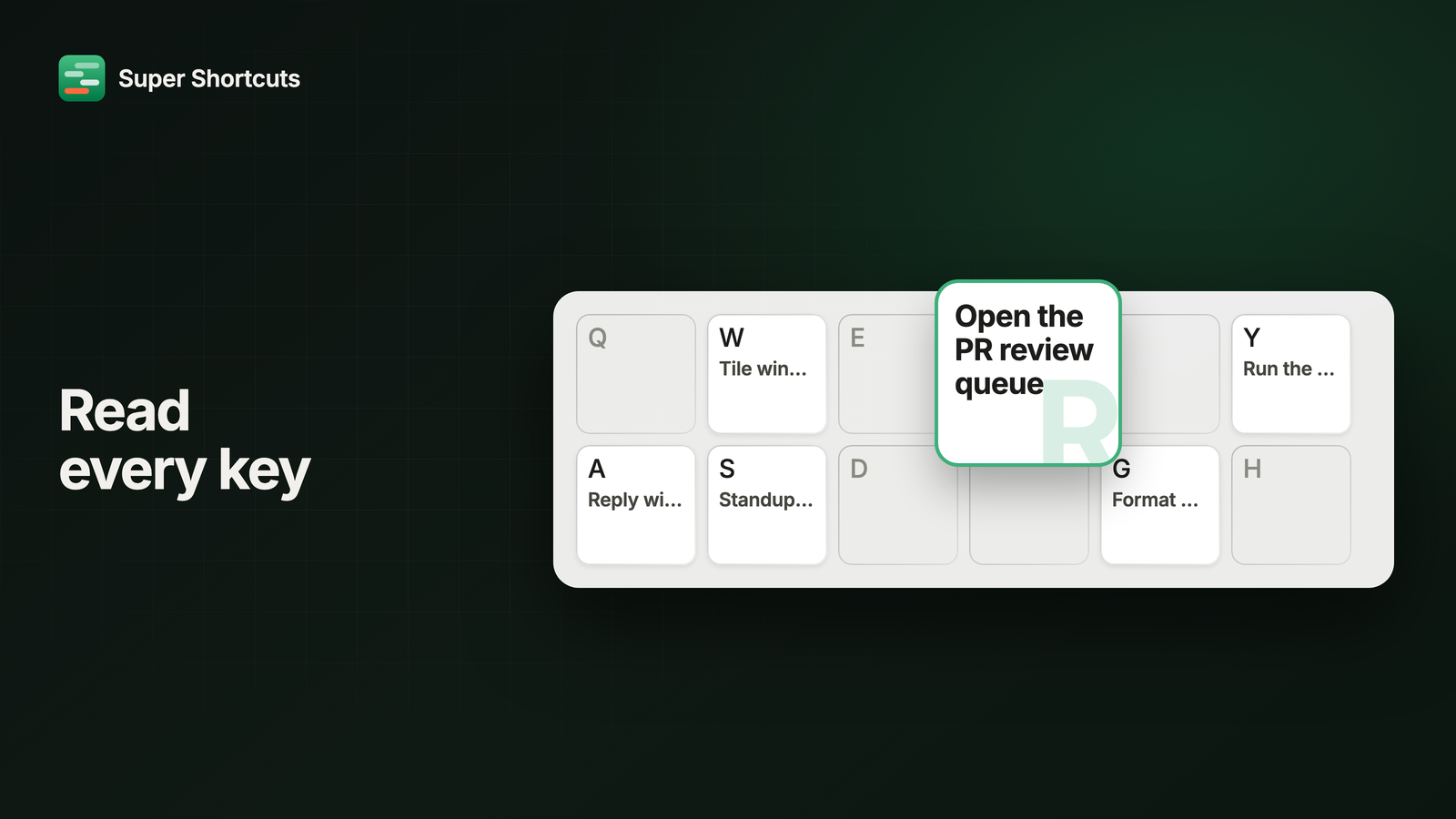
The single most common thing you told us about the Shortcut Keyboard: it feels cramped, and the names are hard to read. Fair. Every key carries a name, and every name has to fit on a cap about the size of a fingertip, so “Open the PR review queue” came out as “Open the P…”, at exactly the moment you were trying to remember which key it was.
So this release is mostly about readability.
Since this release: the cheat sheet is now called the Shortcut Keyboard, and the hyper key is the Super key. This post uses the new names.
Every key magnifies on hover
Hover a key that has a shortcut on it and the cap itself magnifies, half again its size, right where it sits, carrying the whole name across as many as four lines, which is more room than a name usually needs. You’re already looking at the key, so that’s where the answer shows up, rather than in a pill off in the corner of the board.
The names read better before you hover, too. They used to shrink as far as it took to fit, which left a crowded board in a mix of type sizes. Now a name shrinks only a little, keeps its two lines, and leaves the rest to the hover, so the whole keyboard reads at one size.
This is exactly the kind of thing we can’t see from the inside. So thank you, and please keep it coming: Help → Send Feedback… in the app, and every note gets read.
Esc and Space are clickable
Two keys on the board aren’t shortcuts you made. Esc stops whatever is running, and is now called Stop Shortcut so its label says what a click does. With Voice Mode on, Space is your voice key. Both answer a click now, like every other key: click Esc to stop a run, click Space and start talking.
Push-to-talk also moves to Super key + Space by default, instead of Right Shift. If you already had Voice on, your existing key keeps working.
Onboarding that explains the product
Setting up used to mean three separate windows and not much explanation. It’s one guided walkthrough now, rebuilt so that you finish it understanding what Super Shortcuts does and how to use it, rather than just permitted and configured.
Three lessons, taught over the real app
The new Tutorial Center picks up where onboarding leaves off: put a shortcut you already use on your Super key, put the prompt you retype every day on one key, and put a menu item on a key. About two minutes each, and each one runs over the actual app with a spotlight on the next thing to click, so there’s no practice copy that slowly stops matching what you have. Replay any of them from Help → Tutorials….
A failed run explains itself
A shortcut that failed used to just say so. Now its row in Recently Triggered on Home names the step that broke and gives a plain-language reason underneath, so you can see what to fix instead of running it again to find out.