Guide
Mac Super key: Remap Caps Lock on macOS
Updated
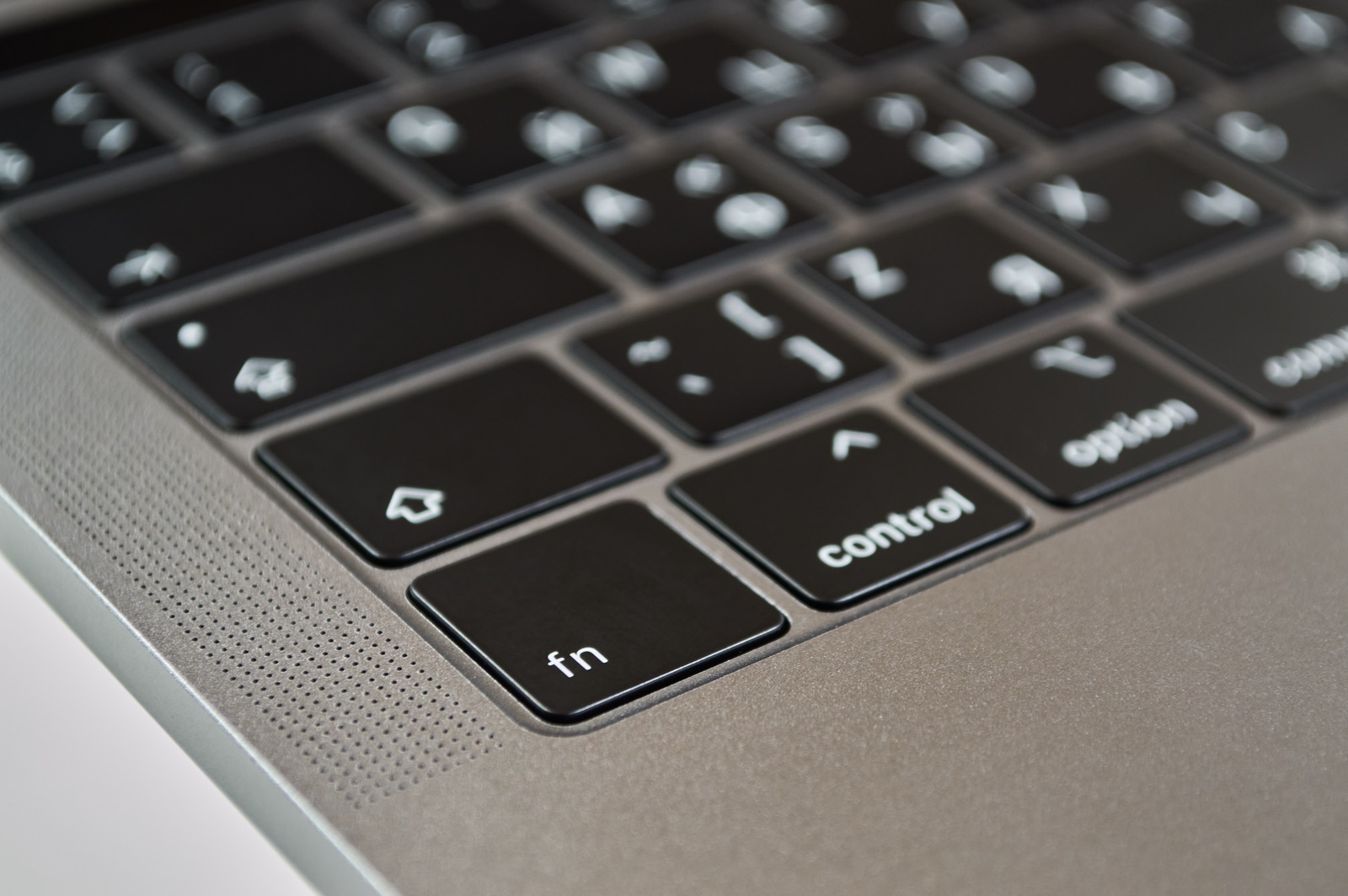
The Super key is a single key - usually Caps Lock or Right Option - remapped to act as control, option, and command pressed together (⌃⌥⌘). Because that combination of modifiers is one almost no app reserves, it hands you an entire new layer of keyboard shortcuts that never collides with the ones you already use. It is, for the effort involved, the single highest-leverage change you can make to how you drive a Mac.
This guide covers what the Super key actually is, why Caps Lock is the key to convert, how to set one up (the no-config way and the manual way), and what to do with it once you have it.
What is the Super key on Mac?
A normal shortcut presses you against the limits of the keyboard: most useful one- and two-modifier combinations are already taken. ⌘C, ⌘T, ⌥⌘→ - the good ones are spoken for, which is why custom shortcuts so often clash with an app’s own.
The Super key sidesteps that entirely. You take one key and remap it so that pressing it sends three modifiers at once: ⌃⌥⌘ (control + option + command). Nothing ships bound to “control-option-command-R,” so that combination - and a few hundred like it - are yours to assign. Hold Shift as well and ⇧⌃⌥⌘ gives you a second layer that is just as unclaimed.
In practice you don’t press three modifiers. You press one key, and the system expands it into the full stack. Hold it, tap a letter, and a command fires. If you’re wondering what living with that actually feels like, one of us made Caps Lock the Super key for a month and wrote it up.
Why is the Super key worth setting up?
Three reasons it punches far above its setup cost:
- Zero collisions. Because no app claims ⌃⌥⌘ + a letter, you never have to think about whether your shortcut will override something. The layer is private to you.
- A whole Shortcut Keyboard. Twenty-six letters, ten digits, and the punctuation keys suddenly become available as single-chord commands. That’s more shortcuts than you’ll ever fill.
- One muscle-memory home. Every custom command lives behind the same key. You stop hunting through menus and remembering app-specific chords; you reach for the Super key and the letter that means the action.
Which key should you make your Super key?
Caps Lock, for most people. It’s the largest key on the home row, your left pinky already rests beside it, and - be honest - you essentially never use it to type capitals. That makes it the most valuable real estate on the keyboard going almost entirely to waste.
The standard setup keeps Caps Lock dual-purpose: a quick tap still does something useful (most people map it to Escape, which is handy for Vim and dialogs), while a hold turns it into the Super key. You lose nothing and gain a whole layer.
Right Option is the other strong choice: it sits under your right thumb, and almost nobody types with it. Right Command and Right Control work the same way.
How to set up the Super key on Mac
There are two routes: the no-config one, where Super Shortcuts does the remap for you, and the manual one with Karabiner-Elements.
The no-config way: Super Shortcuts
Super Shortcuts sets the Super key up during onboarding and gives it a real command layer on top:
- Install and open it, and grant the permissions it asks for - it needs them to see your key and fire commands.
- Pick your Super key. Caps Lock, Right Option, Right Command or Right Control - choose one you don’t use for typing. You can change it later in Settings.
- Hold it. Anywhere on your Mac, the Shortcut Keyboard comes up over your keys and shows what every key does in the app you’re in. Let go and the keyboard types like normal.
- Tap a key to fire a command. Super key + 1 through 9 open the apps you put on the number row; every letter is free for a command of your own.
- Add a second layer when you need it. Hold Shift together with your Super key for a second set of bindings.
Nothing else to install, and no rule files.
The manual way: Karabiner-Elements (free)
Karabiner-Elements is the long-standing, open-source keyboard customizer for macOS. It only remaps the key - turning Caps Lock into a modifier combo doesn’t, by itself, do anything, so you still assign commands to those combinations app by app. To remap Caps Lock with it:
- Install Karabiner-Elements from its official site.
- Grant permissions. On first launch, macOS prompts for Input Monitoring and Accessibility access under System Settings → Privacy & Security. Karabiner needs both to intercept keys.
- Add the rule. Open Karabiner-Elements → Complex Modifications → Add rule, import a rule from the “Change caps_lock key” group in the online rules gallery, and enable it. The gallery’s ready-made rules send command+control+option+shift (⌃⌥⌘⇧) - note the Shift.
- Keep a tap as Escape (optional). Pick the variant that posts Escape when Caps Lock is pressed alone, so a quick tap still sends Escape while a hold acts as the modifier.
- Test it. Hold Caps Lock and press a letter, then assign any app shortcut to that ⌃⌥⌘⇧ + letter combo - it now fires from one key.
One thing to know if you also run Super Shortcuts: its Super key is ⌃⌥⌘, and Shift is its second layer, so a Karabiner rule that sends ⌃⌥⌘⇧ lands on the Shift layer. Either let Super Shortcuts do the remap itself (the no-config route above), or edit the Karabiner rule so it sends control+option+command without Shift.
Super key tools compared
| Tool | Free | Remaps Caps Lock | No config files | Gives the key commands | Context-aware |
|---|---|---|---|---|---|
| macOS built-in (System Settings) | Yes | One modifier only - can’t stack three | Yes | No | No |
| Karabiner-Elements | Yes | Yes (⌃⌥⌘⇧ in its ready-made rules) | No - edits low-level rules | No | No |
| Super Shortcuts | Free tier | Yes (⌃⌥⌘) | Yes | Yes | Yes |
macOS can remap Caps Lock to a single modifier (Control, Escape, etc.) under System Settings → Keyboard → Modifier Keys, but it can’t combine three modifiers into one key - so a true Super key needs one of the tools above.
What can you actually do with the Super key?
This is the part most guides skip. The Super key is a foundation; its value comes from what you build on it. A few examples:
Super key + R→ make the selected text red in Google DocsSuper key + M→ mute or unmute your mic, from any appSuper key + 1→ open your morning ritual: terminal, editor, calendar, the right tabsSuper key + L→ copy a markdown link to the GitHub PR you’re looking at
The trick that makes the Super key scale is context: one binding, read differently depending on which app has focus. Super key + M can mute Zoom in a meeting and open Gmail in the browser - one key, the right action for where you are. That’s exactly the layer Super Shortcuts builds on the Super key: collision-free commands, scoped to context, with the Shortcut Keyboard on hold so you never have to remember what’s bound.
The bottom line
The Super key reclaims the most wasted key on your Mac and turns it into a private, collision-free layer of shortcuts. Karabiner-Elements does a plain remap for free, and if you want the Super key to arrive with commands already attached - scoped to each app, with the Shortcut Keyboard so nothing’s forgotten - that’s what Super Shortcuts is for.
Frequently asked questions
What is the Super key?
The Super key is one physical key remapped to send control, option, and command at once (⌃⌥⌘). Because that exact combination is almost never used by macOS or apps, every shortcut you build on it is yours alone and won't collide with anything.
Is this the same as the Super key on Linux?
Same name, different key. On Linux and X11, Super is the name for the Windows or Command key - a single modifier. On a Mac, the Super key described here is a key you designate to fire ⌃⌥⌘ together, which gives you a whole layer of shortcuts rather than one more modifier.
What's the difference between the Super key and Caps Lock?
Caps Lock is just the key you remap - the most popular choice because it sits on the home row and you rarely need it for capitals. The Super key is the behavior you map onto it. Most setups keep a quick tap working as Escape (or real Caps Lock) and treat a hold as the Super key.
Will the Super key clash with my existing shortcuts?
No - that's the whole point. Almost no app binds ⌃⌥⌘ + a letter, so the Super key gives you a clean, private layer of shortcuts that sits on top of everything you already use without overriding it.
Do I need Karabiner to set up the Super key?
No. Super Shortcuts remaps the key for you without touching config files, then lets you assign commands to it. Karabiner-Elements is the free classic for a plain remap, but it edits low-level rules, and its ready-made Caps Lock rule adds Shift - which Super Shortcuts reserves for its second layer.
Is remapping Caps Lock safe and reversible?
Yes. Key remapping on macOS is fully reversible - change the key back in Settings (or quit the app) and Caps Lock goes back to normal. It doesn't modify the system permanently; it intercepts the key while the tool is running.
What's the difference between the Super key and a leader key?
The Super key is a modifier you hold while pressing another key (like ⌘). A leader key is pressed and released first, then followed by a sequence (like Vim's leader). A held modifier is faster for single-chord commands; leader keys scale to more bindings but add a keystroke.