Release notes
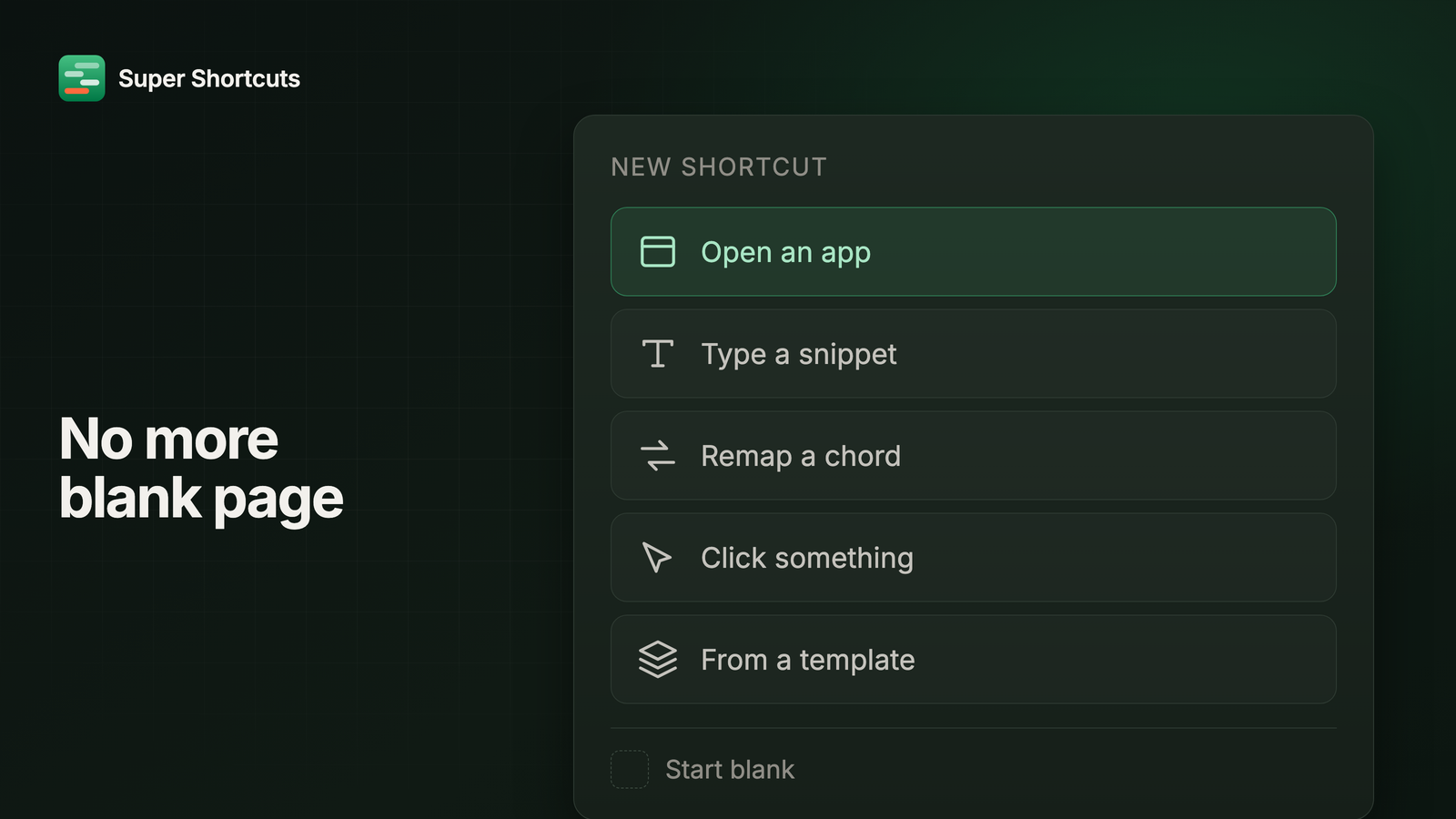
No more blank page
The hardest part of a shortcut was always the first thirty seconds. You clicked New, got an empty editor, and had to already know what the app could do before you could ask it for anything. People who got past that built ten shortcuts in a week. People who didn’t closed the window.
So the interface is rebuilt around one idea: a shortcut is a key you press, in a place, that does something. Everything you already made is still here, and still runs. It is just easier to find, and much easier to add to.
Start from something you’d actually make
New Shortcut no longer opens a blank page. It offers the things people actually build: open an app, expand a snippet of text so you never type the same thing twice, remap an awkward shortcut in any app, click something on screen, or start from a template.
Each one is a short set of steps that asks you only what it needs, and ends with the shortcut made. Starting blank is still there when you want it - it is just not the only door any more.
A keyboard you can click
Your shortcuts are drawn on a picture of your own Mac keyboard, in your own layout. Keys you have set are solid. Keys you have free are outlines. Click a free key to put a shortcut on it; click one you have set to see what it does and run, edit or move it.
It is the same keyboard you already see when you hold the Super key, which is the point: the thing you use to remember your shortcuts is now also the thing you use to make them. If you would rather read a list, there is a plain list too, with filters and search.
It saves as you go
The editor keeps up with you. Every change is saved a moment after you make it, and ⌘Z takes it back - no Save button, and nothing lost because you closed a window.
Test run tries whatever you are looking at, unsaved edits included, and highlights each step as it runs. When one fails it stops there and tells you which step stopped and why, instead of leaving you to guess which of eight steps was the problem.
Point at what you want clicked
Choose on screen replaces the old Element Inspector. Point at the button or field you mean and the step fills itself in. Same idea, far less explaining - and it is still a Pro feature.
One word for everything
Workflows, recipes and automations were three names for things that behaved almost identically, and every conversation about the app had to start by sorting them out. They are all shortcuts now, in the app, the menus and Help. Your files have not changed, and an app on a key is simply a shortcut like any other.
If you built recipes, this needs one edit from you. A shortcut that still contains an old recipe step keeps it, shows it as “no longer available”, and stops there when you run it. Open that shortcut and swap the step for Run shortcut, which does the same job.
One other move worth knowing: a website shortcut now belongs to a browser, so any that used to work in any browser have moved to your default one.
Also in this release
Settings opens over the page with ⌘, and is grouped into sections you can scan. You pick your Super key by sight now, from the real keys drawn on screen, and the Shortcut Keyboard comes in four sizes, up to extra large. First run is shorter: pick your Super key, try it, choose where to go next. And when an update is ready, an Update available button appears at the top right - one click downloads and installs it.
Super Shortcuts 2026.9.15 requires macOS 12 or later, and installs itself the next time the app checks for updates. New here? Download it, then read up on signing in and going Pro.