A personal command layer for macOS

Your Mac, fully commandable.

Turn the shortcuts you can never remember - and the hundred little things you do all day - into commands you fire by hyper key or voice, scoped to the app you're actually in. Visible. Local. Yours.

autoplay · muted · loops
screen - TextEdit
0:05
Flag the churn risk in the doc.
R
⌃⌥⌘ R → make text red
Google Docs should have shipped this out of the box. Now we do.
screen - Desktop
0:05
1
Morning ritual, one keystroke
Terminal, editor, calendar, and three tabs open in the right places at once.
screen - Meet
0:05
Weekly sync · you're live
Muted
M
⌃⌥⌘ M → mute / unmute
The real shortcut's ⇧⌘A - good luck remembering that. You'll remember M, because you made it. M for mute.
Leverage

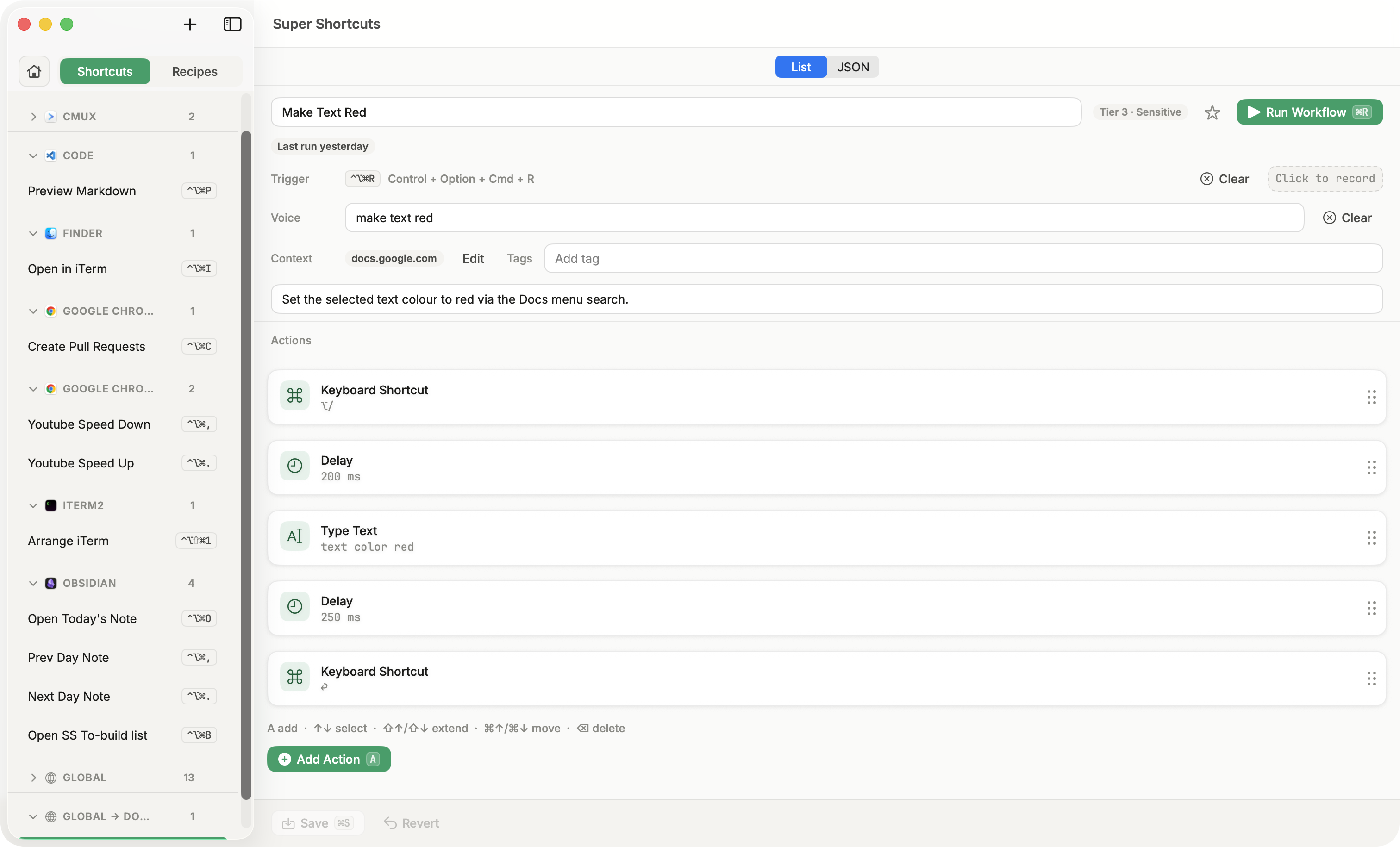
One trigger, one to ten actions - however many steps it takes.

Wire one chord - or a spoken phrase - to a whole sequence of steps, and fire it with a single press.

The Super Shortcuts workflow editor for the Make Text Red command - its ⌃⌥⌘R trigger, “make text red” voice phrase, Google Docs context, and the step-by-step action chain.

Reclaim the most useless key on your Mac.

Make Caps Lock your hyper key - the key you never use becomes the fastest on the board. A double-tap still toggles real Caps Lock.
Context-aware

The right command in the right place.

One key, many meanings. Super Shortcuts runs the command that fits the app, website, or window you're in - so your command layer stays sharp instead of collapsing into a pile of global hotkeys.

⌃⌥⌘ M in Chrome → open Gmail ⌃⌥⌘ M in Zoom → mute / unmute
Discovery

Never forget a command again.

Hold the hyper key. A cheat sheet drops over your keyboard, showing exactly what's bound right now, right here.

Voice commands

Say it when your hands are full.

Hold to talk, release to run. Voice fires the same commands you already built - transcribed on your Mac, never sent anywhere.

Local & offline Push-to-talk Picks from your commands, never improvises
Local-first

Local-first, and nothing hidden.

Routine runs and voice both stay on your Mac. Every command is a workflow you can open, read, and edit - no black box. We ask for real macOS permissions to automate your apps, and explain each one before you grant it.

How permissions work →
What you earn back

See the time you earn back.

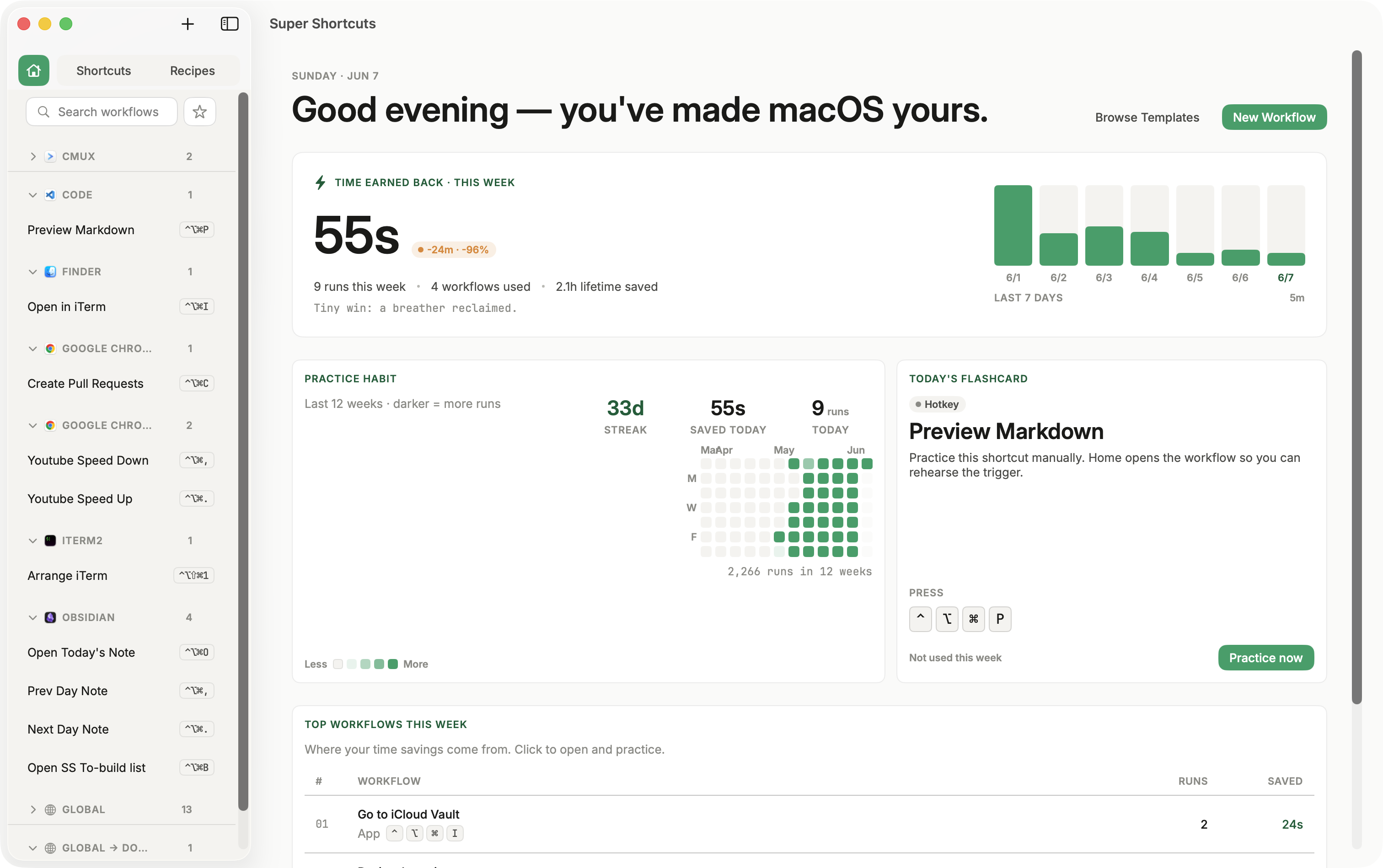
A Home dashboard turns your runs into real numbers - time saved this week, your streak, your top commands, week over week. The quiet proof it became part of your day.

The Super Shortcuts Home dashboard: time earned back this week, a practice-habit streak calendar, saved-today and runs-today counters, today's flashcard, and top workflows this week.
Fast start

Start in under a minute.

Don't start from a blank page. Install a ready-made command, run it, then make it yours.

R
⌃⌥⌘ R
Make Text Red
Turn the selection red without hunting through the Format menu.
Google Docs
L
⌃⌥⌘ L
Copy PR Link
Grab a markdown link to the pull request you're looking at, ready to paste.
GitHub
T
⌃⌥⌘ T
Run Tests
Fire your test command in the integrated terminal without reaching for the mouse.
VS Code
M
⌃⌥⌘ M
Toggle Mic
Mute or unmute the call from any app, without finding the meeting window first.
Meetings
B
⌃⌥⌘ B
Toggle Sidebar
Collapse or show the sidebar to reclaim the full width when you're heads-down.
VS Code
E
⌃⌥⌘ E
Insert Email Signature
Drop your standard sign-off wherever the cursor is - same wording, every time.
Global

Built-in packs for Google Docs · GitHub · VS Code · Meetings · Global.

FAQ

Questions, answered.

Will it clash with shortcuts I already use?

No. Commands fire on the hyper key (⌃⌥⌘ plus a letter), a combo almost no app binds. And each one is scoped to a context, so the same chord can mean different things in different apps without ever colliding.

Is my data private? Does voice go to the cloud?

Everything runs on your Mac. Voice is transcribed on-device and never sent anywhere, and routine runs stay local. Every command is a workflow you can open, read, and edit, so there's no black box.

What macOS permissions does it need?

The standard automation permissions (Accessibility, and Automation for some actions) so it can drive your apps. We explain each one before you grant it, and you can revoke them anytime in System Settings.

How is it different from Raycast, Keyboard Maestro, or macOS Shortcuts?

Raycast and Alfred are launchers you summon; Super Shortcuts fires in place, scoped to where you are. Keyboard Maestro is a deep macro engine; this is the fast, memorable layer on top, with no macro mental model. macOS Shortcuts is broad but detached from your live context. It coexists happily if you already run your own hyper key.

Do I have to build everything from scratch?

No. Install a ready-made command from the starter library (Google Docs, GitHub, VS Code, Meetings, Global), run it, then make it yours.

Do I need an account, and what does it cost?

No account, and it runs locally on macOS. It's in early access now: join the waitlist and we'll email you a seat when it's ready.

Make your Mac do what you mean.

Early access to Super Shortcuts - no account, runs locally. One email when your seat is ready.

You're on the list. Watch your inbox.